If you need help logging into SRJC Libraries' resources, please contact SRJC Libraries. We will use your answers to Question One and Question Two below to troubleshoot and resolve your login problem.
Question One
Where are you starting from when trying to login? Option 1, 2, 3, or none of these? This helps library staff understand your starting point.
Option 1
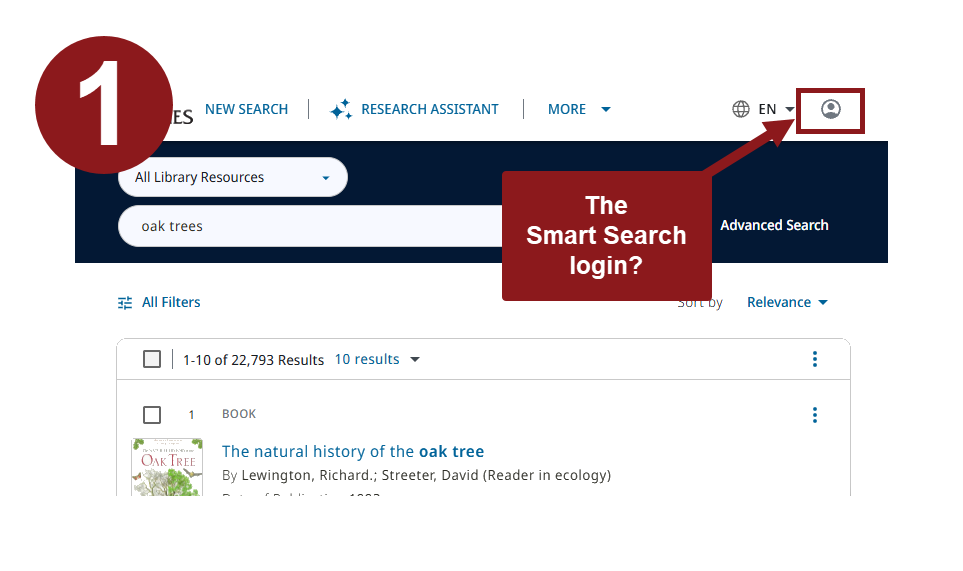
Option 1 is the Smart Search login. Option 1 image shows a screenshot of Smart Search with the top menu items (new search, research assistant, more, and the my library account icon). The My Library Account icon has a red box drawn around it with a red callout pointing to it that says "The Smart Search login?".
Option 2
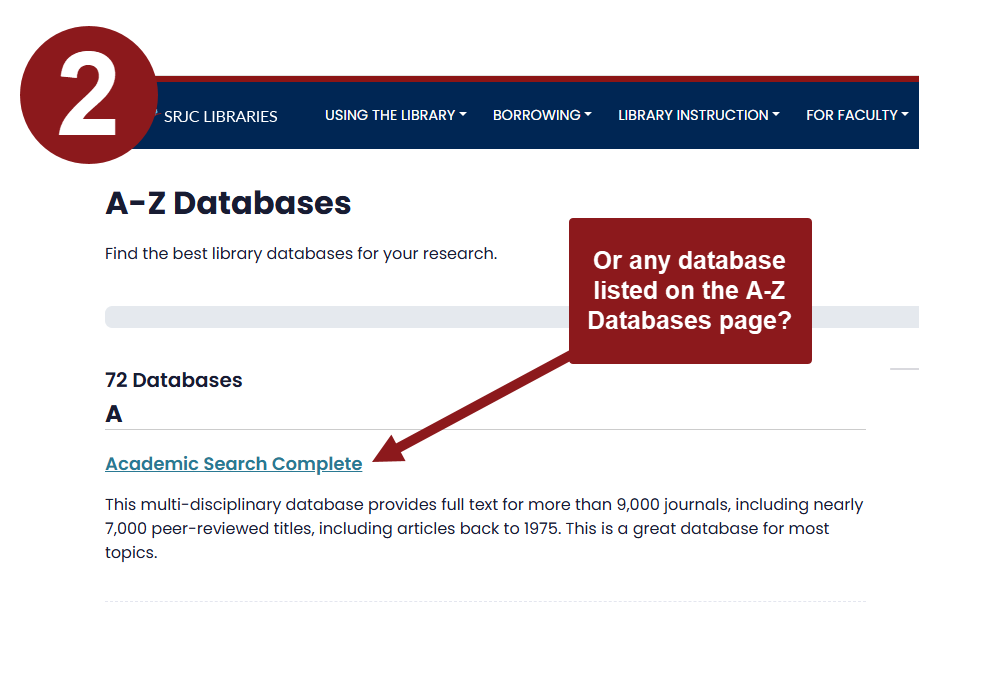
Option 2 is a database listed on the A-Z Database page. Option 2 image shows a screenshot of SRJC Libraries A-Z Database page. There is a red call out box with an arrow pointing to "Academic Search Complete" (as an example). The call out says "or any database listed on the A-Z page?"
Option 3
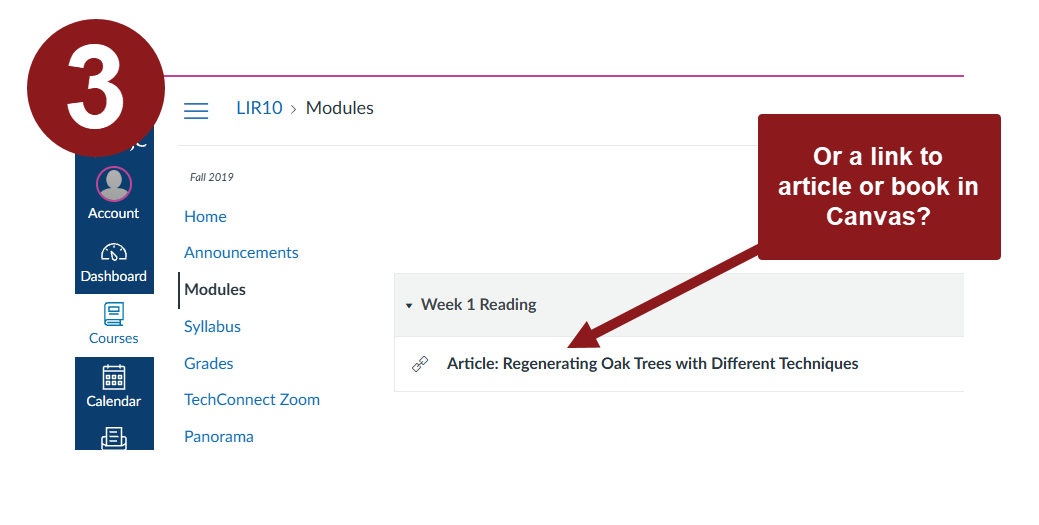
Option 3 is a link on a page in Canvas. Option 3 image shows a screenshot of Canvas showing a module called Week 1 Reading with a link to an article listed under Week 1. There is a red call out box with an arrow pointing to the article link and the call out says "or a link to article or book in Canvas?"
Question Two
Which error message did you receive? Option A, B, C, D, or none of these? (see explanations below for each error)
Option A
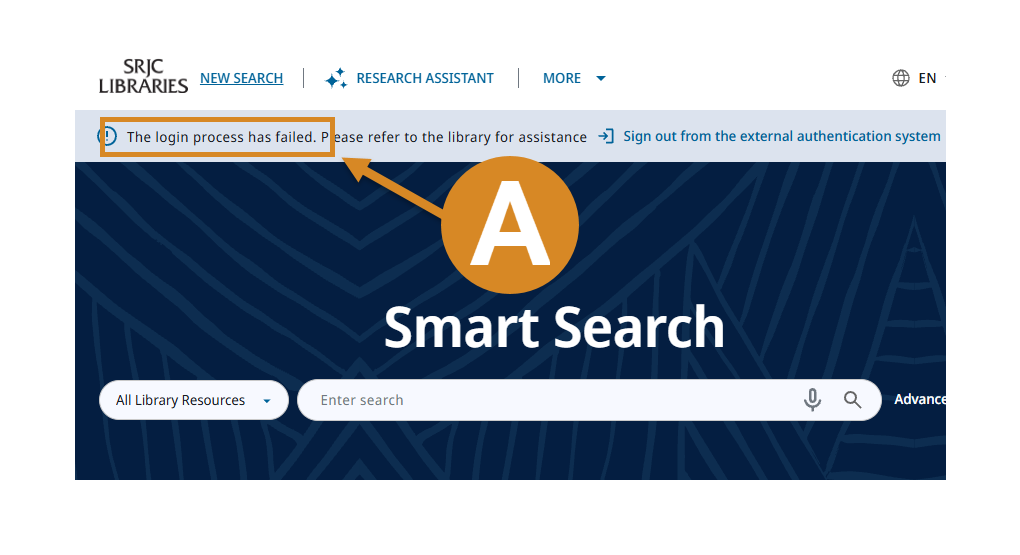
Option A shows an error message on the Smart Search screen that says "The login process has failed. Please refer to the library for assistance." On the screenshot there is also an orange call out circle with the letter A in it with an arrow pointing to the words "The login process has failed."
Option B
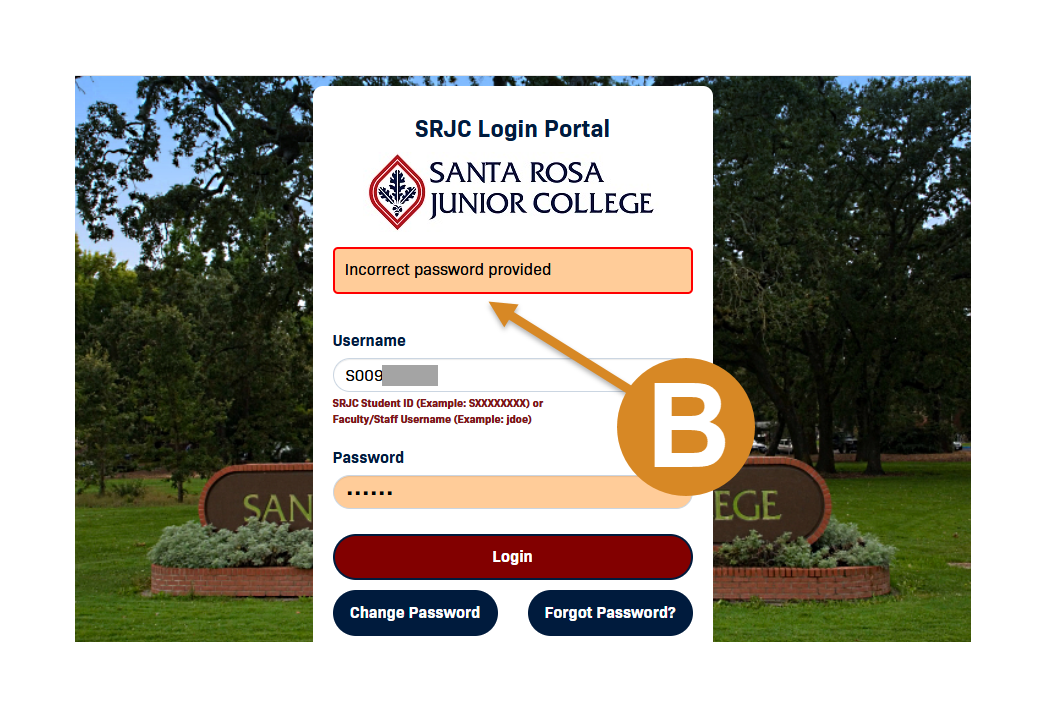
Option B shows an error message on the SRJC Login portal that says "Incorrect password provided." On the screenshot there is also an orange call out circle with the letter B in it with an arrow pointing to the words "Incorrect password provided."
Option C
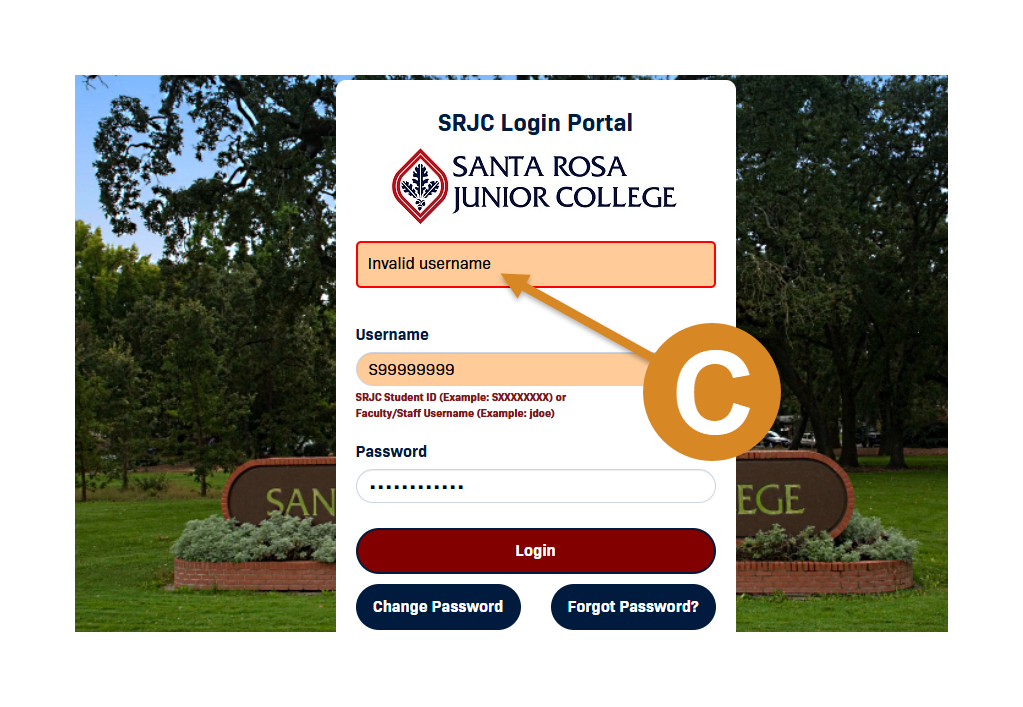
Option C shows an error message on the SRJC Login portal that says "Invalid username" On the screenshot there is also an orange call out circle with the letter C in it with an arrow pointing to the words "Invalid username."
Option D
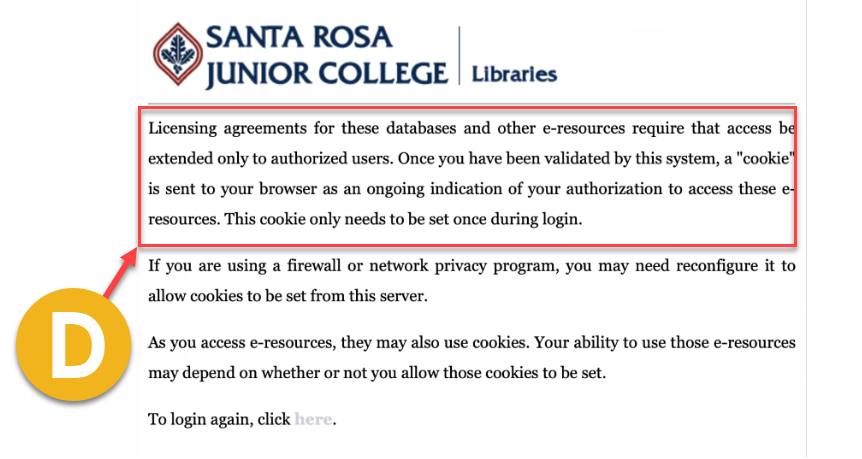
Option D shows an error message from Santa Rosa Junior College Libraries that says "Licensing agreements for these databases and other e-resources require that access be extended only to authorized users..." On the screenshot there is also an orange call out circle with the letter D in it with an arrow pointing to the words "Licensing agreements for these databases..."
Option E
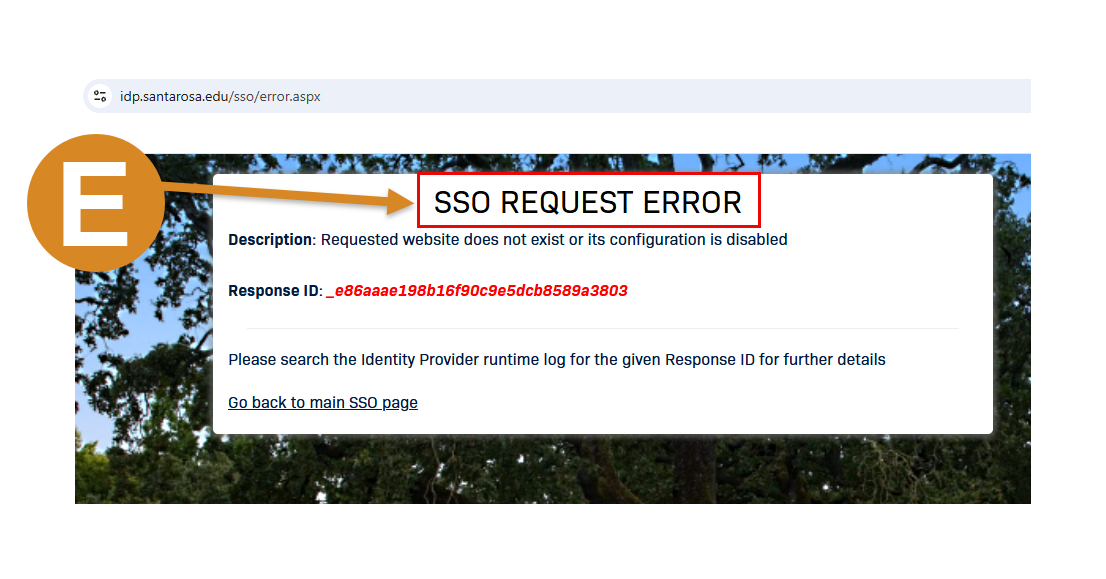
Option E shows an error message that says "SSO REQUEST ERROR." On the screenshot there is also an orange call out circle with the letter E in it with an arrow pointing to the words "SSO Request Error."
Explanation of Each error type
If A, possibilities are:
- Student record is missing, incomplete, or expired in our library services platform (Alma/Primo). If you think an Alma error is possible, send an email to edaniels@santarosa.edu and krahn@santarosa.edu.
- It has been less than 24 hours since the student has registered for a class.
- Staff/faculty used old 9-digit user ID instead of 'jsmith' (or similar). They should be using 'jsmith' (or similar).
- Staff/faculty is logged into the SRJC portal in another window using an old 9-digit number.
If B, possibilities are:
- User has typed in incorrect password
- User needs to recover correct password. See SRJC Password Portal information page.
If C, possibilities are:
- User has typed in incorrect SRJC credentials
- Student is using old SRJC ID number. All new/current SRJC ID numbers start with 'S', for example S99999999.
- Student does not know their ID number. See Recover Student ID page to have ID number sent to email on file.
- It has been less than 24 hours since student registered for a class.
- User is not a student, staff or faculty
If D, possibilities are:
- User needs to adjust cookie settings on browser to enable cookies. For the most up-to-date directions, do a google search such as "enable cookies chrome" or "enable cookies safari".
- User is trying to watch an embedded (in a frame) Films on Demand film in Canvas. Current solution is for instructor to provide the direct link instead or have student go directly to Films on Demand to watch the film.
If E, possibilities are:
- SRJC's Single Sign On (SSO) application is down. User will need to wait until service is restored.
- The California Community College's Single Sign On (CCC SSO Gateway) application is down. User will need to wait until service is restored.
If none of the pictures above, possibilities are:
- User is trying to login to additional services provided by a vendor (for example, an Ebsco personal folder, JSTOR personal account login, etc.).
- For example, you use SRJC credential to get into Ebsco's Academic Search Complete, but once you are there, you use your google account to store your saved articles.
- The one exception is your Smart Search account, which is linked to SRJC credentials.
- User is trying to login to a non-library site
Troubleshooting Steps
Generally, if you can answer yes to each of the questions below your user category, then you'll be able to login.
Students
For students, library login uses the same username/password that you use to log into the Bear Cub Hub or Canvas. For example: S12345678 and your unique password
- Are you trying to login to one of the screens pictured on this page?
- Are you currently enrolled in a class?
- Has it been more than 24 hours since you registered for a class?
- Have your confirmed that you are using an ID number that begins with 'S', for example S99999999? (Old ID numbers do not start with 'S' and do not work).
- Have you recovered your SRJC Student ID number and confirmed it is what you thought it was?
- Have you reset your passwordand tried to login again?
- Can you login to the Bear Cub Hub successfully using the above credentials?
Faculty & Staff
For staff and faculty, library login uses the same username/password that you use to log into a District computer or Outlook. For example: "jsmith" and your unique password (do not include the @santarosa.edu and do not use a 9-digit number).
- Are you trying to login to one of the screens pictured on this page?
- Are you currently employed?
- Are you using the same credentials they use to login to district computers? (i.e. jsmith)
- Can you login to the Bear Cub Hub successfully using the above credentials?
Still having trouble?
If you are still having trouble logging in, then please send a screen shot of the error message you are receiving along with your first and last name to Erin Daniels at edaniels@santarosa.edu. Please also include the link to what you were trying to access (i.e. link to specific article, link to specific database, etc.)